Tutorial
How to use VaultLedger
A short walkthrough of the main loop: fund your account, invest, accrue earnings, and withdraw to your wallet. Operations you perform in the app may be reviewed by administrators before balances or payouts finalize.
Overview
- Account — Register with email, or log in. Your dashboard shows balance, active investments, and shortcuts to every action.
- Deposit — Pick an asset, then Crypto (on-chain) (copy address, send, submit tx hash) or Dialpay (USSD, platform number, operator reference). After approval, your spendable balance increases.
- Invest — Choose an amount from your balance. Your tier (Starter → Enterprise) follows the amount; each position runs for the product term and earns daily ROI according to that tier.
- Withdraw — Choose amount and the saved on-chain wallet for the asset, then whether you receive by Bank or Dialpay (details in a bottom drawer). Daily caps and fees apply; staff review pending withdrawals before payout.
How to deposit
- Open Deposit in the dashboard.
- Select the asset to credit (SOL, USDC, USDT, or BTC), then funding: Crypto (on-chain) or Dialpay.
- Crypto: copy the platform deposit address, send from your wallet, then submit the USD amount and on-chain transaction hash.
- Dialpay: enter the USD amount, copy the USSD code and platform Dialpay number, complete the payment on your phone, then paste the operator reference and submit the deposit request.
- Requests stay pending until verified; then your balance credits. Screens below will refresh when new product shots are available.
Screens — follow along
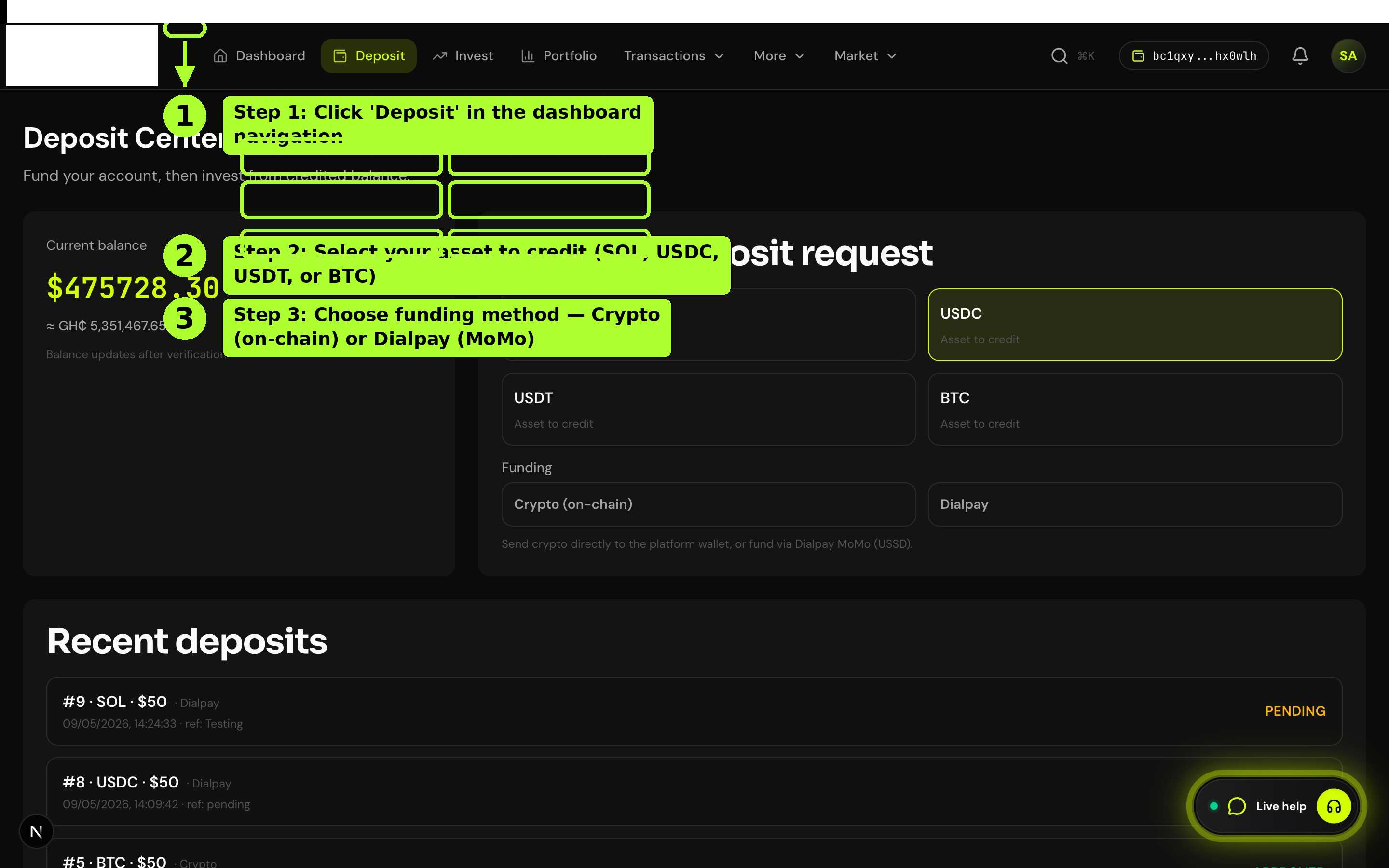
Step 1
From the dashboard, open Deposit to see your balance and the funding form.
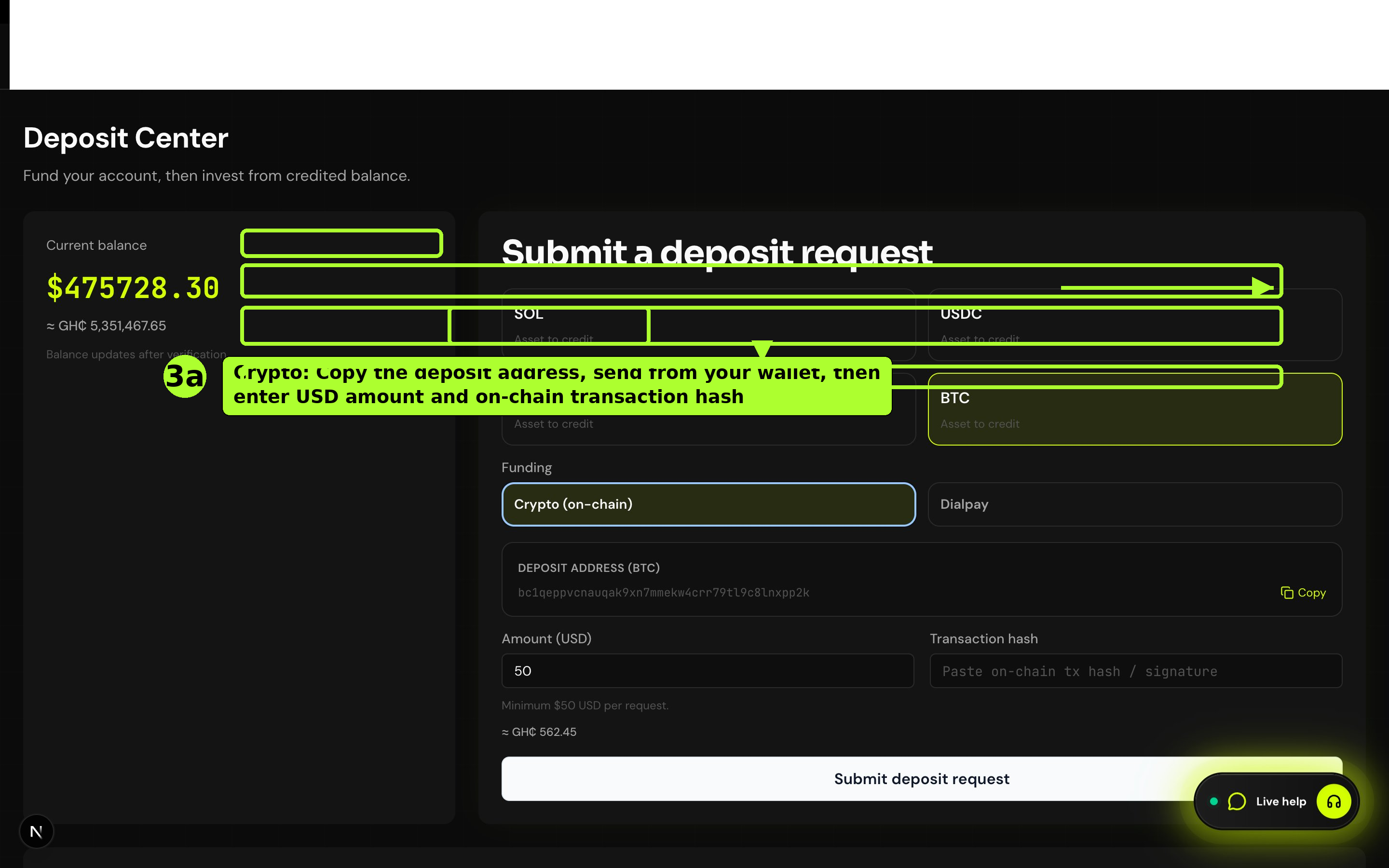
Step 2
Crypto (on-chain): pick the asset to credit, copy the platform deposit address, send from your wallet, then enter USD amount and transaction hash and submit.
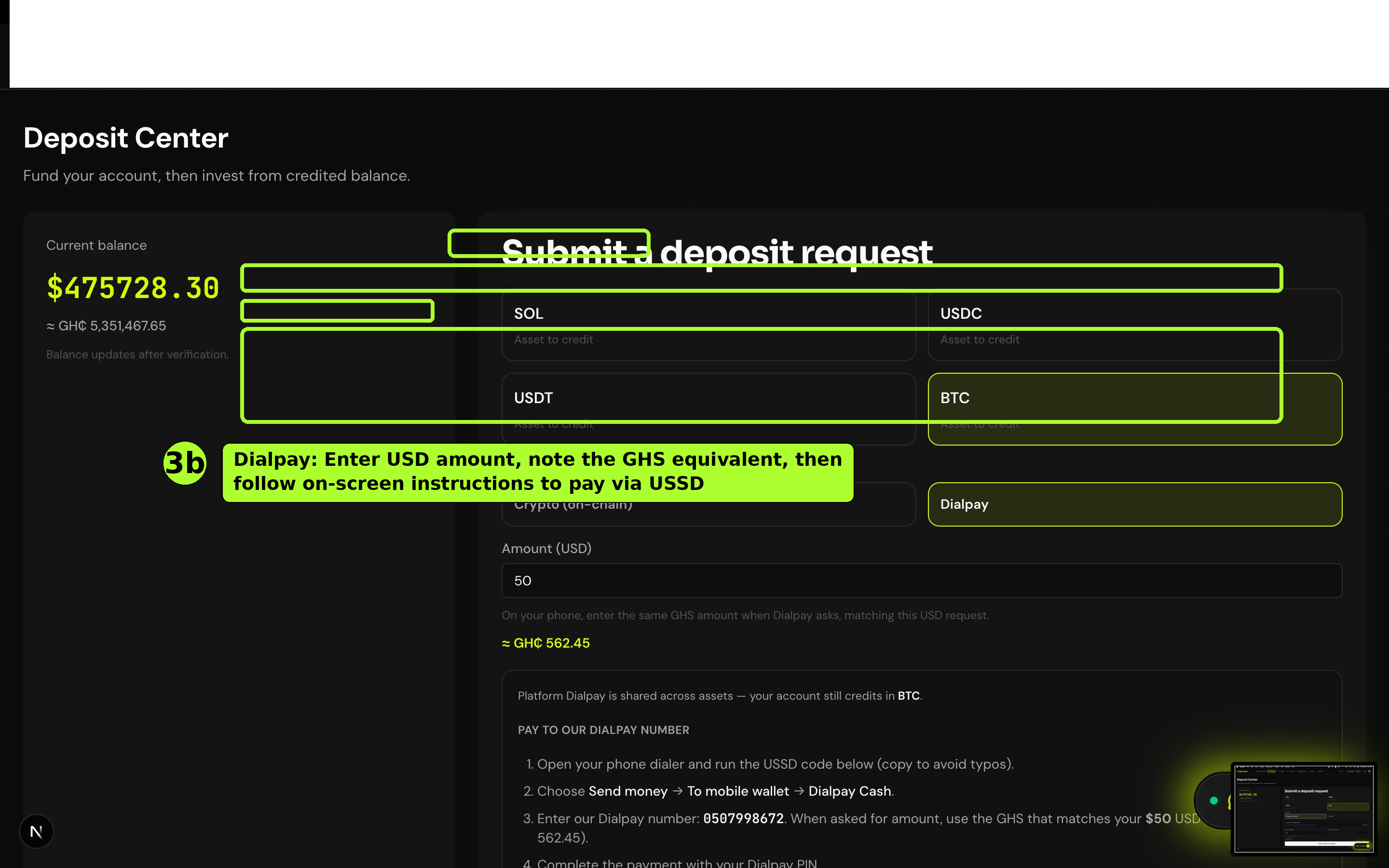
Step 3
Dialpay: choose Dialpay funding, enter the USD amount, then follow the on-page steps to pay to the platform Dialpay number.
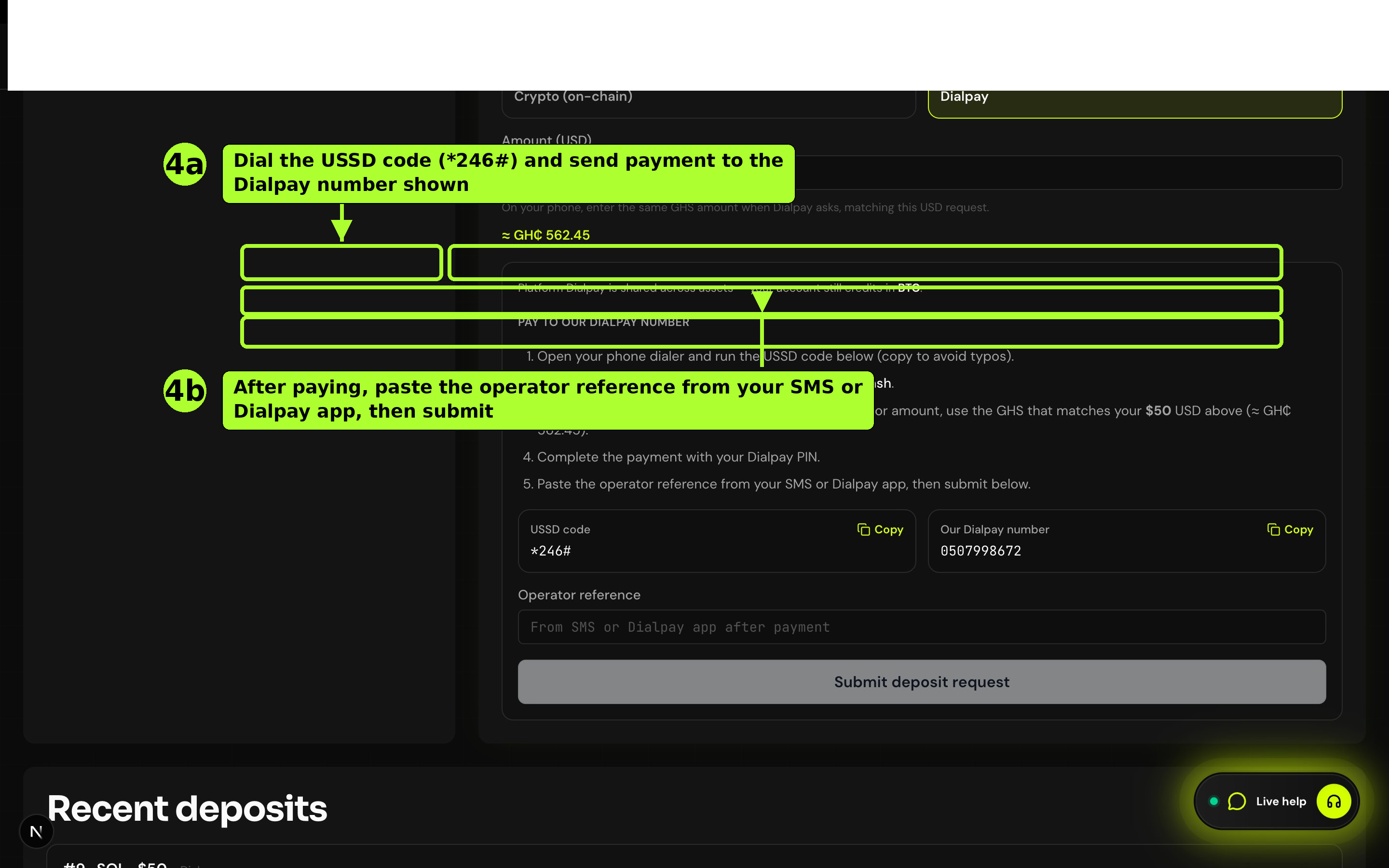
Step 4
Copy the USSD code and Dialpay number, complete payment on your phone, paste the operator reference, and submit the deposit request.
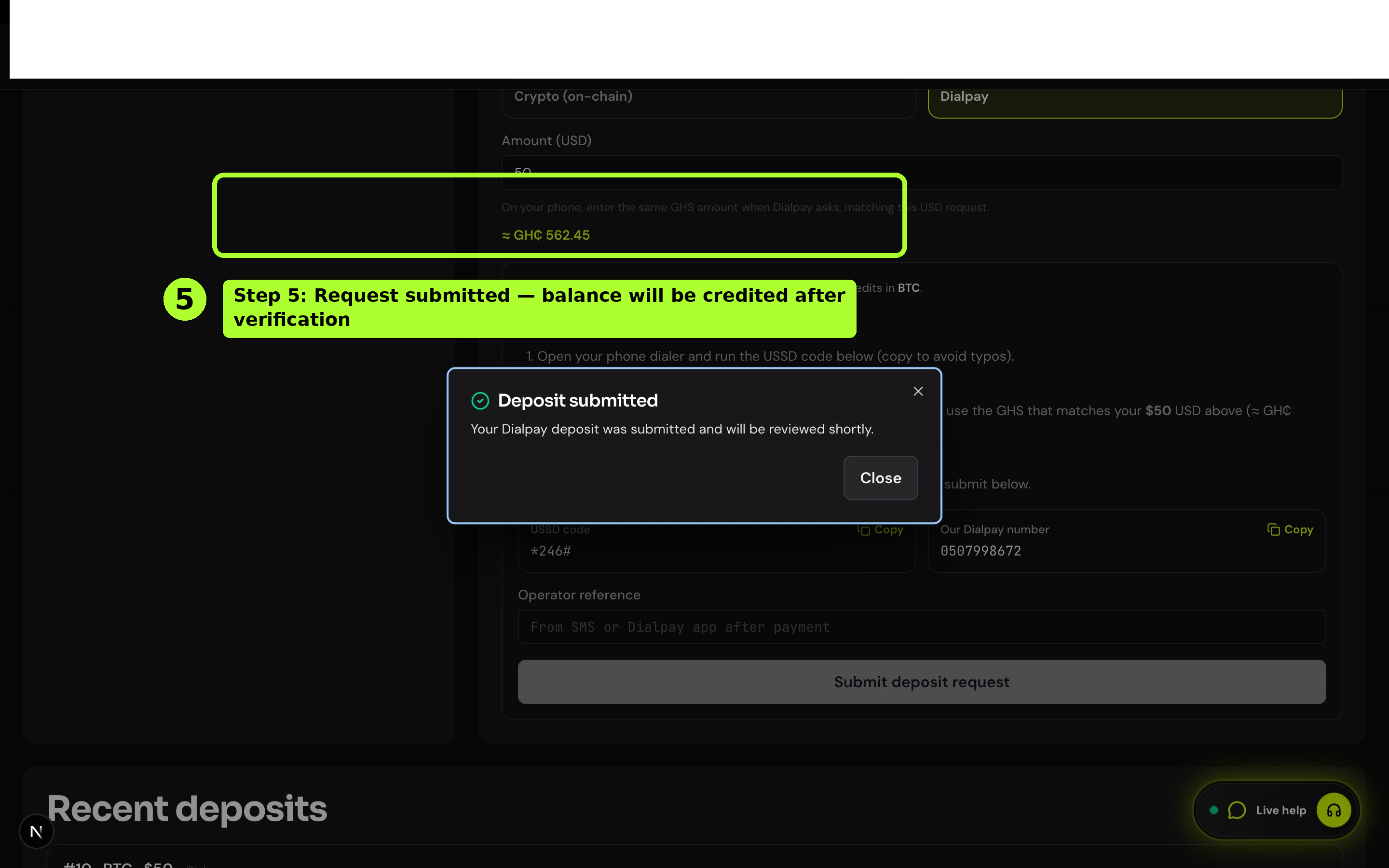
Step 5
Your request appears under Recent deposits as pending until verified; then your spendable balance updates.
Never share your login password or seed phrase. For crypto, only send to the address shown while you are signed in. For Dialpay, use only the number and USSD string shown in the app.
How to invest
- Confirm you have enough balance (from approved deposits). Open Invest.
- Enter the principal amount. The app assigns the package tier automatically from the amount (see Packages for ranges and ROI).
- Confirm the investment: the principal is debited from balance and appears under Portfolio.
- Each position runs for the product duration; daily earnings accrue on the platform schedule and show up in your ledger and notifications.
Screens — follow along
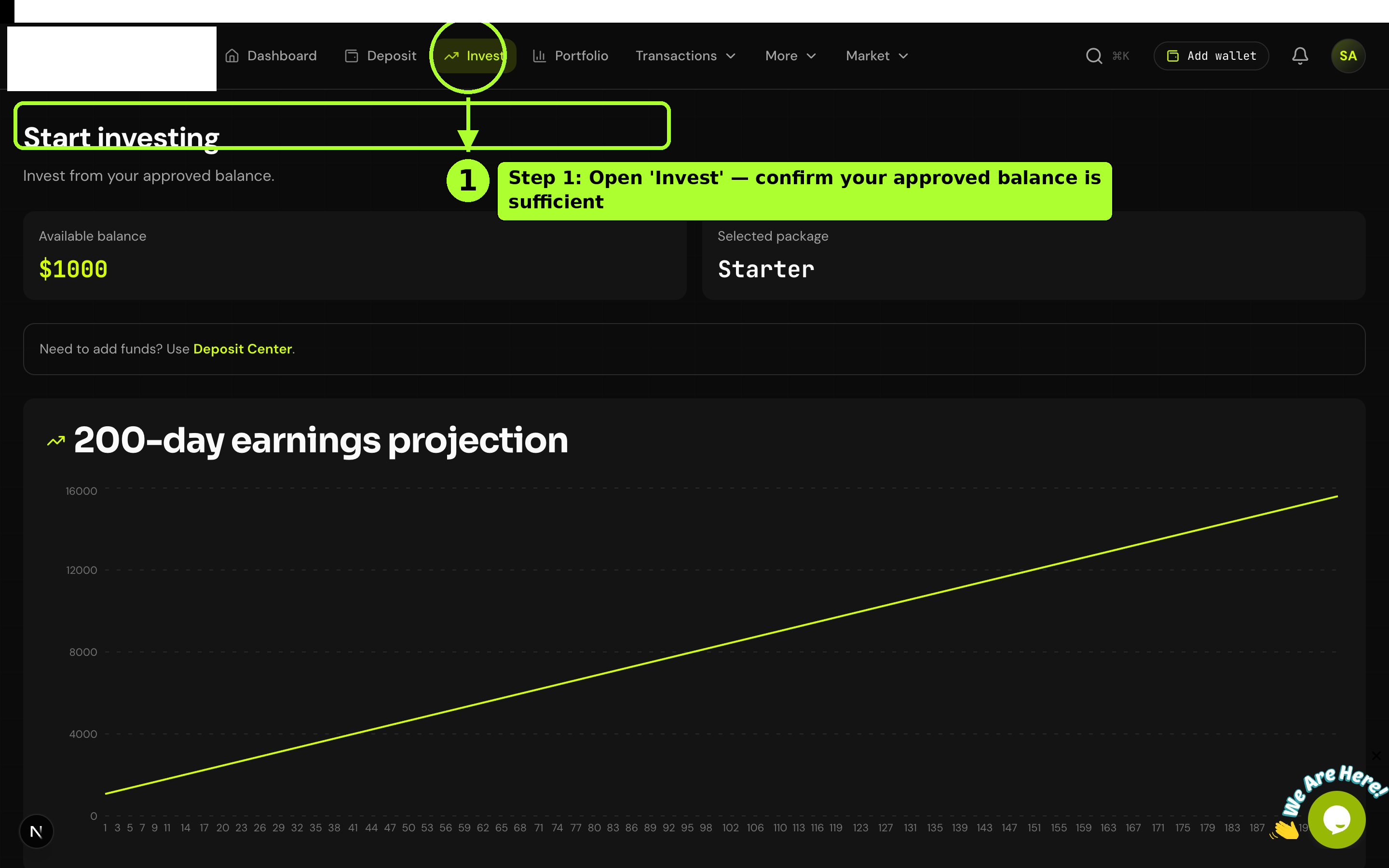
Step 1
Open Invest from the dashboard once you have available balance from approved deposits.
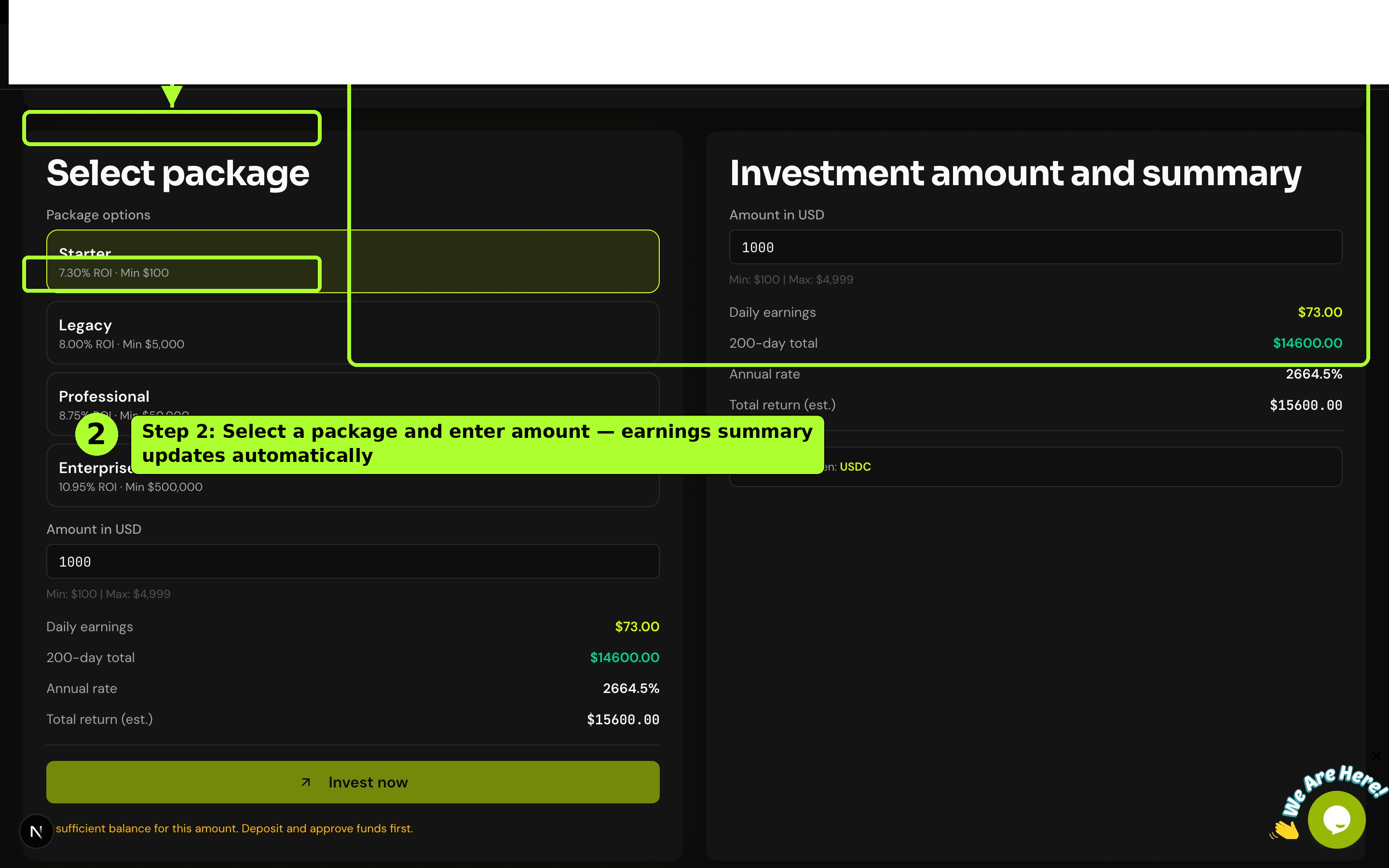
Step 2
Enter your principal and choose an investment term (7–200 days). The app shows the package tier and rate for that band (see Packages for full ranges).
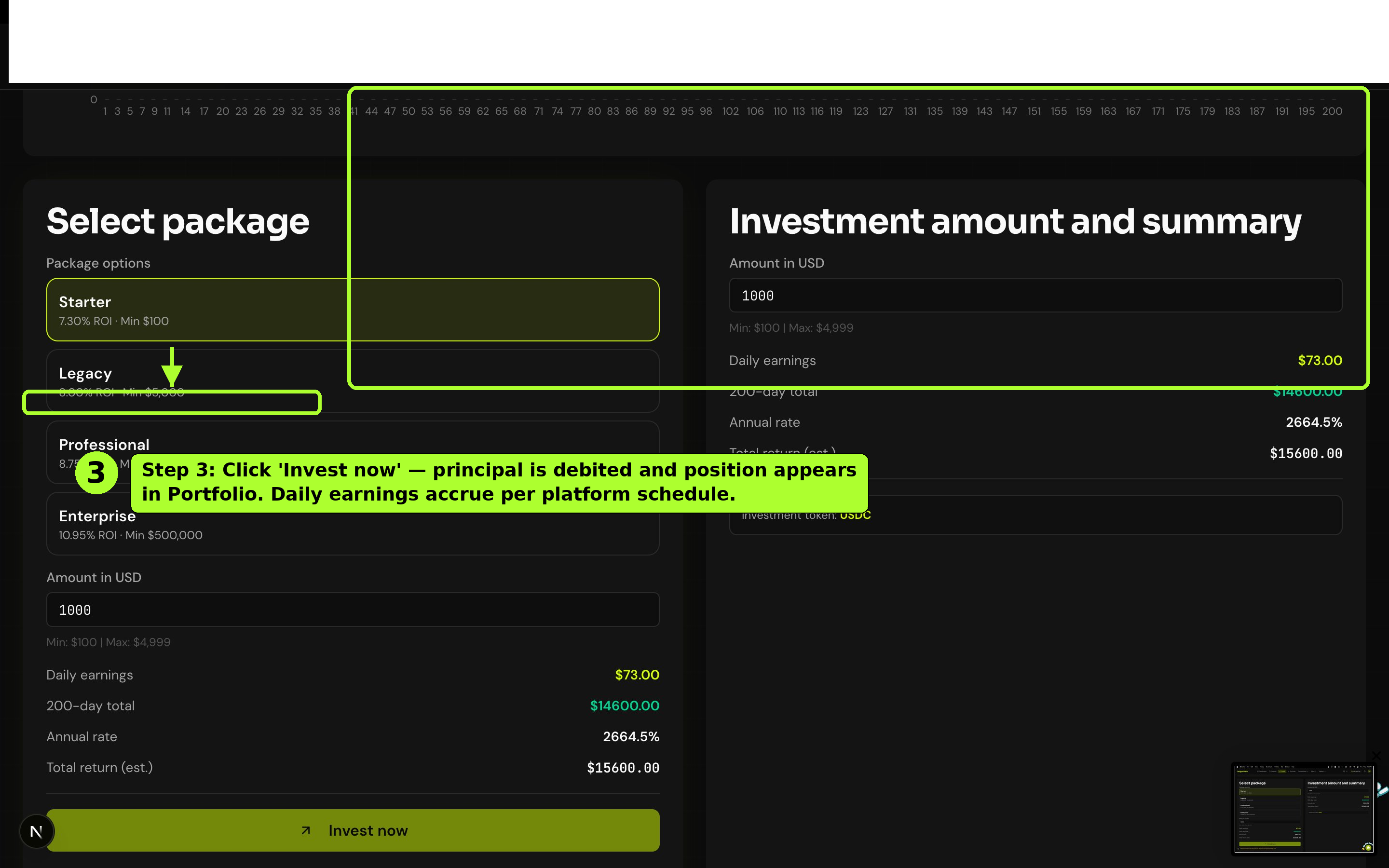
Step 3
Confirm to open the position. Principal leaves your balance, the investment appears under Portfolio, and daily ROI accrues through your selected term.
Earnings
- Daily ROI — Credited per active investment based on tier. Open Earnings for history and types (ROI, referral bonuses, etc.).
- Dashboard estimate — The home figure is an estimate of today’s ROI across open positions; credited rows appear in the ledger once processing runs.
- Referrals — When your invited users invest, commissions may post to your balance by level. See Referrals for your code and network summary.
How to withdraw
- Save a payout wallet per token from the header wallet menu or Settings (correct chain and token matter).
- Go to Withdraw. Enter amount and pick the destination wallet for the asset. The app enforces minimums, balance, fee, and daily withdrawal limits from active investments.
- Choose Receive payout via — Bank or Dialpay — and complete the bottom drawer (bank name + account, or MoMo number + network).
- Review net after the platform fee, then submit. Your balance debits immediately; the withdrawal stays pending until reviewed and paid out.
- Approved requests may show a payout reference in your activity; timing depends on the queue and compliance checks.
Screens — follow along
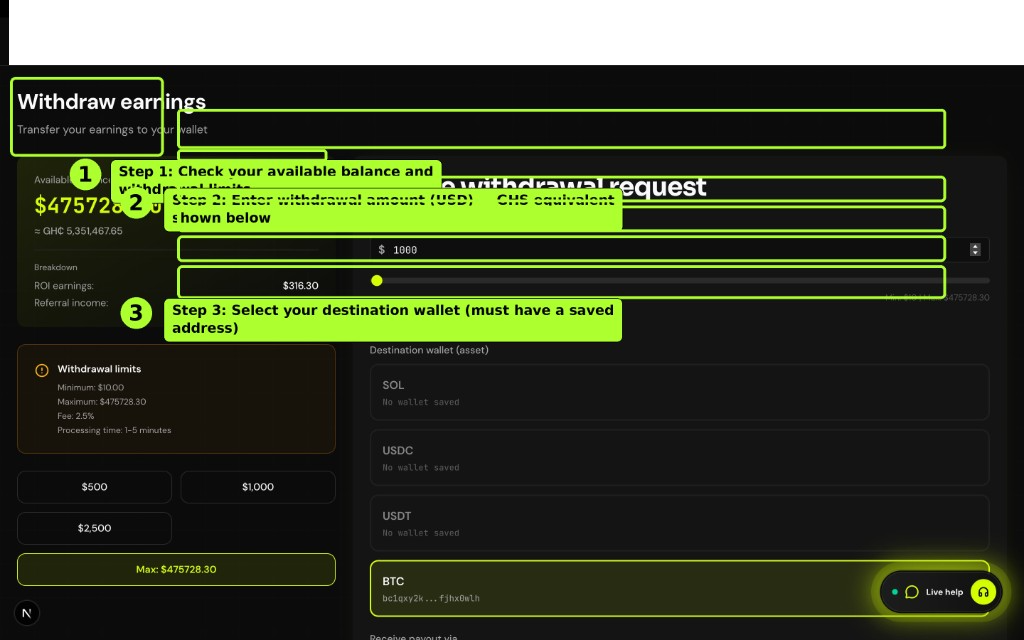
Step 1
Open Withdraw: check available balance and limits, enter amount (USD with GHS hint), then pick the saved on-chain wallet for the asset you are withdrawing.
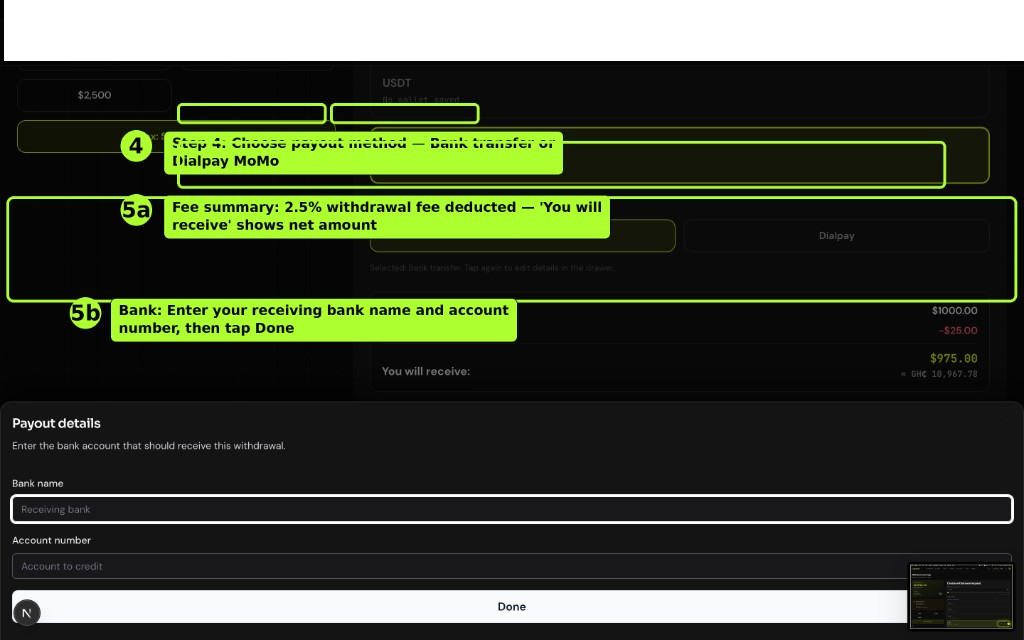
Step 2
For a bank payout, choose Bank under “Receive payout via”, open the drawer, enter your receiving bank name and account number, then tap Done.
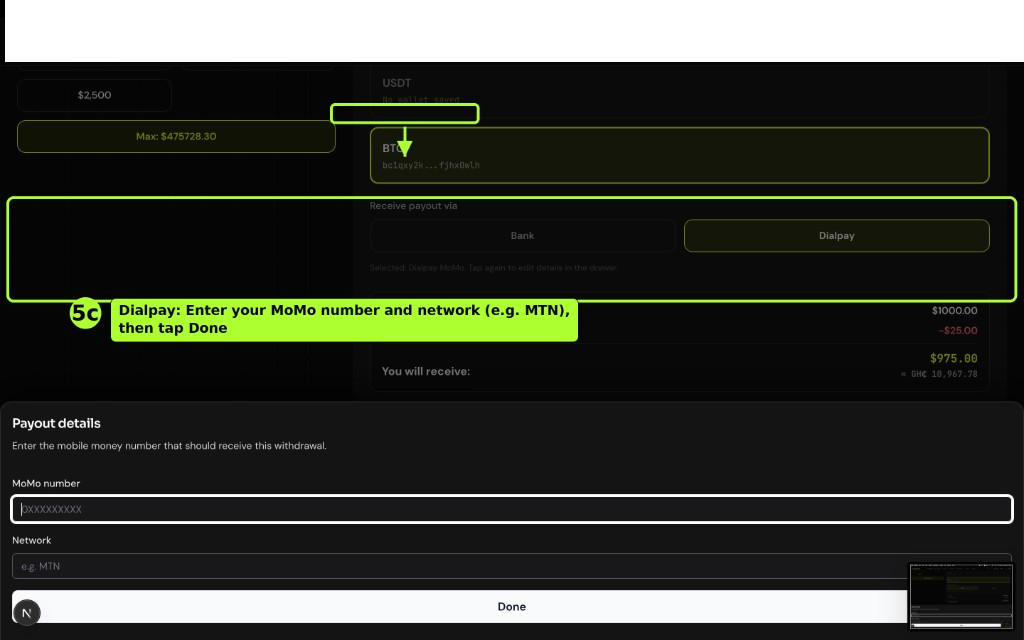
Step 3
For Dialpay, choose Dialpay, open the drawer, enter your MoMo number and network (e.g. MTN), then tap Done. Review fee and net amount before requesting.
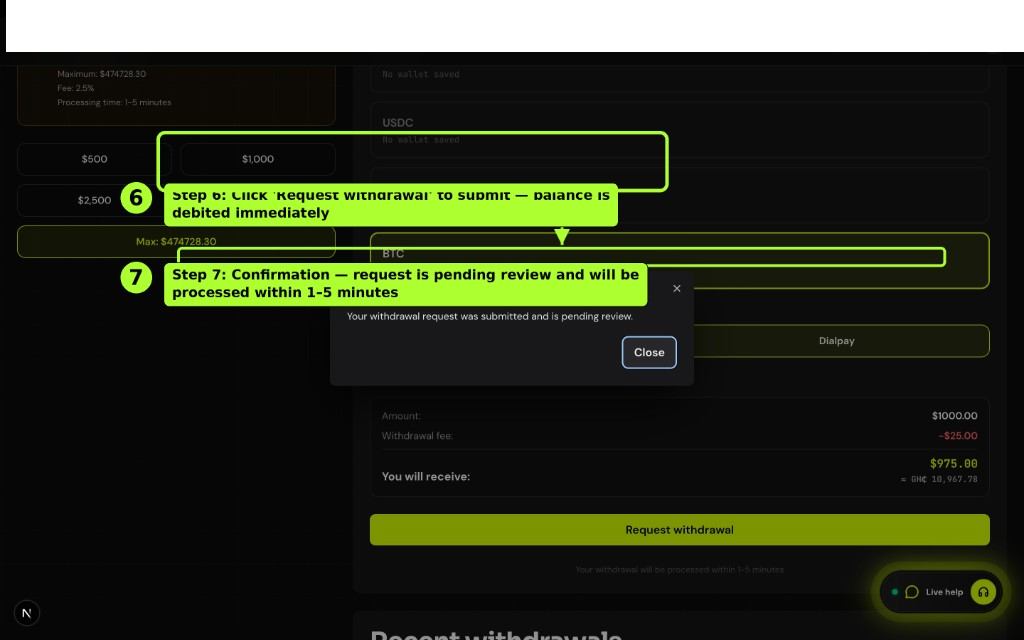
Step 4
Tap Request withdrawal to submit. You will see a confirmation while the request is pending review; status appears under Recent withdrawals.
Referrals
Share your personal referral code from the dashboard. New users who register with your code link into your network; when they invest, level-based bonuses can credit to your balance (see the public landing pyramid and terms for the current schedule). Your direct count and code live on the Referrals page.